
How to undo WordPress settings changes safely.
The short answer.
If ConfigOps observed the save, review its before-and-after evidence and use Undo only when the current value still matches. If it was not active beforehand, WordPress has no universal settings history: reverse the exact setting you can verify or recover from a known backup.
Choose the right recovery pathStart with what actually changed.
“Undo WordPress” can mean four different operations. Choosing the wrong one can overwrite healthy content, code, or newer settings.
URLs, email delivery, SEO, media, reading, or other configuration.
Review recorded values, or manually reverse only the exact setting you can verify.
Available only if ConfigOps observed the save and the current value still matches.
Editorial content or a Site Editor change.
Use the relevant editor history or revision; use a backup only if that is unavailable.
Unavailable. ConfigOps does not restore content or templates.
PHP, JavaScript, CSS, templates, or database migrations tied to code.
Restore a tested code version or a complete backup, preferably on staging first.
Not plugin rollback. It handles supported configuration values, not code.
Multiple layers changed, the admin is unavailable, or the cause is uncertain.
Preserve the current state, then restore a known backup in a controlled environment.
Evidence may help diagnosis, but ConfigOps is deliberately not a backup.
If ConfigOps observed the save, review three things before Undo.
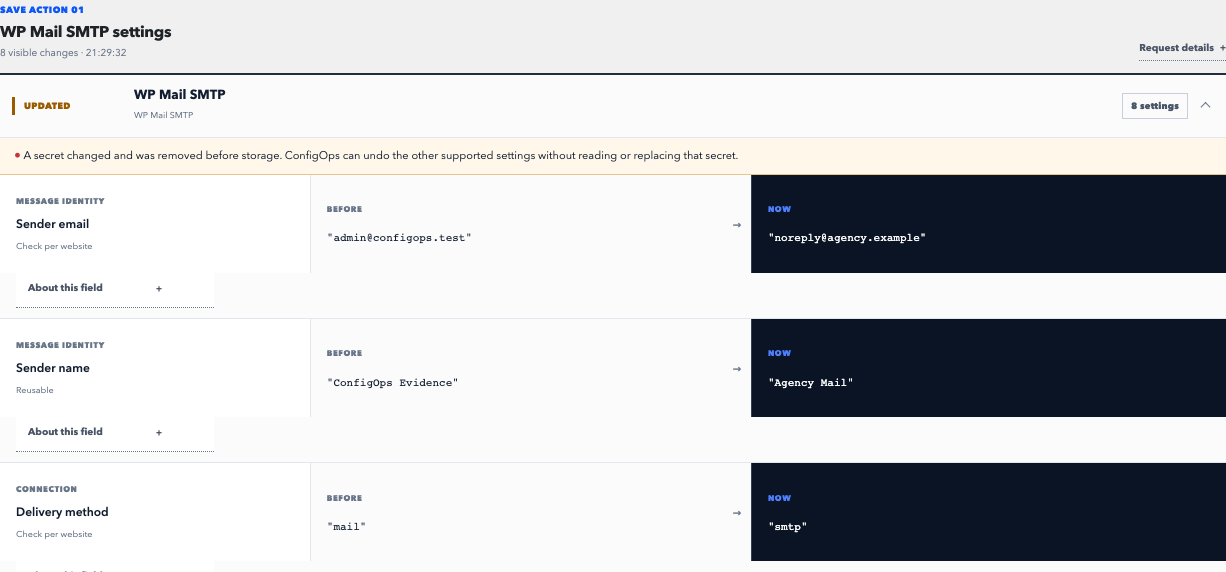
One observed save becomes one reviewable record. The important work is not adding an Undo button; it is proving when that button must disappear.
- 01
Open the observation
Use the evidence card shown after the save or open ConfigOps in WordPress admin. Identify the request by time, screen, and acting user.
- 02
Read the complete diff
Check the original and final values, the responsible component, and which writes are settings versus plugin housekeeping or redacted secrets.
- 03
Undo only while the proof holds
ConfigOps compares every restorable current value with the captured result. A newer edit creates a conflict and blocks the restore instead of overwriting it.
Automatic Undo requires complete evidence under a tested adapter or verified Smart Undo patch, plus a current-state match.
Read the exact support contractRecover the affected layer—not the whole site.
Preserve the current state, identify whether settings, content, code, or several layers changed, then choose the smallest restore that covers the damage.
Before you undo anything
Stop repeating the save or changing adjacent settings. Note the approximate time, the user, the admin screen, the action taken, and the first visible symptom. Screenshots and exact error text are more useful than a memory reconstructed after several more edits.
Take a fresh backup of the current—even broken—state before restoring an older one. It preserves orders, form submissions, comments, content, and configuration created after your last known-good backup. When possible, reproduce and repair the problem on staging rather than experimenting on production.
A setting can be a scalar value, a serialized array, or one field inside a larger plugin option. Editing the wrong shape can damage neighboring settings or invalidate cached data.
If no settings history exists
First return to the exact WordPress or plugin screen and identify the field that changed. If the previous value is known and the site remains usable, reverse that one field through the same interface and verify the result. Keep a record of both values and the test you used.
When the earlier value is unknown, compare a recent backup on staging rather than copying an entire old database into production. WordPress stores many settings through its Options API, commonly in the options table, and one plugin screen can write multiple values or an array of related fields. A database row is implementation detail, not proof of user intent.
If the admin is unavailable or more than configuration changed, use your host's documented restore procedure or involve the person responsible for the backup system. A complete restore should define which files and database tables it replaces and how post-backup changes are preserved.
Settings Undo, backup, activity log, and code rollback are different tools
The supported writes caused by an observed settings save.
Only values that still match the captured result.
A snapshot existed at a point in time.
The files, tables, or site state included in that snapshot.
An actor performed an event, depending on the log's coverage.
Usually nothing by itself.
Which code version is installed.
Plugin or theme files—not necessarily their database settings.
Keep tested backups for disaster recovery, an activity log for accountability, settings evidence for a specific configuration save, and code version history for plugin or theme files. None of these records substitutes for the other three.
Make the next settings change recoverable
Install ConfigOps before the next incident. Authorized settings changes made through WordPress admin, REST, and WP-CLI can be observed automatically when they use supported WordPress option writes. Evidence remains in the site's own database and is retained for 30 days by default.
Probable secrets are redacted before persistence. ConfigOps can opt in to Smart Undo for verified keys inside ordinary, unclaimed associative option arrays. Custom plugin tables, direct SQL, ambiguous structures, and untested adapter contracts remain outside automatic recovery. Those limits are visible because a recovery tool should state what it cannot prove.
Download ConfigOps free on WordPress.orgFive questions before you restore anything.
A setting, a content revision, a code update, and unknown site damage require different recovery scopes.
Can WordPress undo a saved settings change by itself?
WordPress does not provide one universal history or Undo control for every saved Core and plugin setting. The correct recovery method depends on what changed: editor revisions for content, a code rollback for plugin or theme files, a backup for broad site state, or recorded settings evidence for configuration values.
Can ConfigOps undo a change made before it was installed?
No. ConfigOps needs to observe the original save so it can record the before and after values and verify that an Undo would not overwrite a newer change. Install it before you need it; it cannot reconstruct evidence retroactively.
Is restoring a backup the same as undoing one setting?
No. A backup can replace a broad slice of site state and may also overwrite legitimate changes made after the backup. A settings-level Undo targets supported values from one observed save and checks their current state first.
Does rolling back a plugin version restore its old settings?
Not reliably. Plugin rollback replaces code. Configuration usually remains in the database and may have been migrated by the newer version. Use a tested backup for broad recovery or ConfigOps for a supported settings change it already observed.
What should I do before editing the WordPress database?
Record the time, screen, user action, and visible symptoms; take a fresh backup of the current state; and reproduce the problem on staging when possible. Change only a value you can identify and verify. If the affected layer is uncertain, prefer a controlled backup restore over speculative database edits.